
You can easily display your Nimble Create template on any Lightning page, such as a record page, app page, or home page by using a custom Lightning component where you can select the template and specify the parameters.
These steps assume you are already familiar with Lightning App Builder. To learn about this tool, check out the Lightning App Builder Trailhead module.
Show Me an Image...
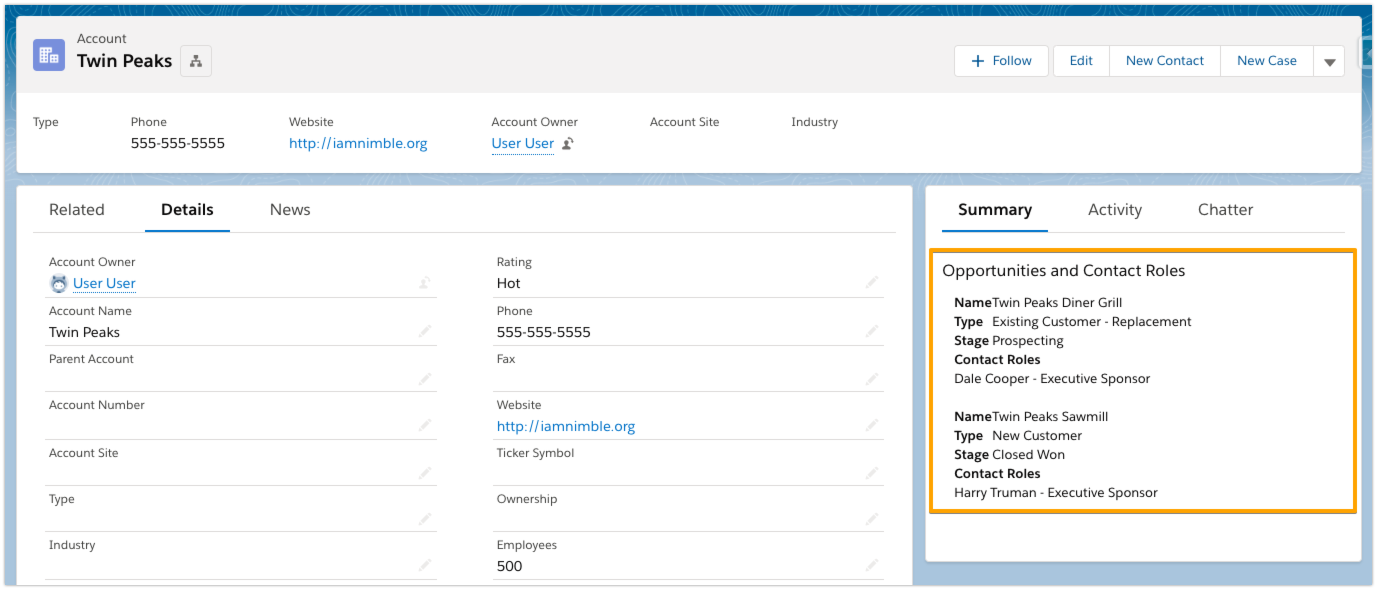
On this account record page, a Nimble Create template named Opportunities and Contact Roles is displayed in a Summary tab in the context of the Twin Peaks account.
-
Open the Lightning page where you want to add the Nimble Create template.
-
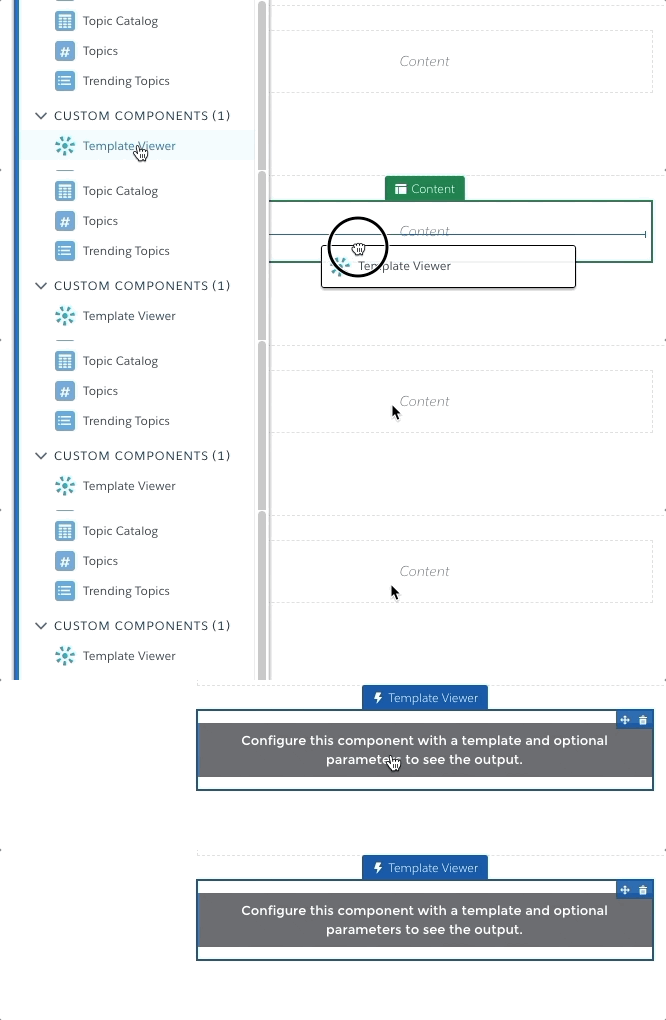
In the Lightning Components Pane, in the list of Custom components, add the Template Viewer component to the Lightning page.
-
in the Properties Pane:
-
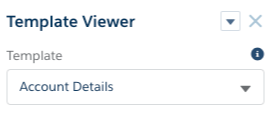
Specify which
Templateto use.
-
If the template requires a parameter, in
Parametersenter it as a key-value pair. For example:param1=0016300000bUGheAAG– For
Parameterson record pages, if your parameter key references a record ID, you can enter the valuerecordIdto have the template dynamically render the template in the context of the record being viewed. Assuming the first parameter, the syntax is:param1=recordId– You can enter multiple
Parametersusing an ampersand as a delimiter. For example, for three parameters you can enter:param1=0016300000bUGheAAG¶m2=recordId¶m3=0016300000bILACAAU
-
From here, you can save your Lightning page and test to ensure your Nimble Create template correctly renders.