
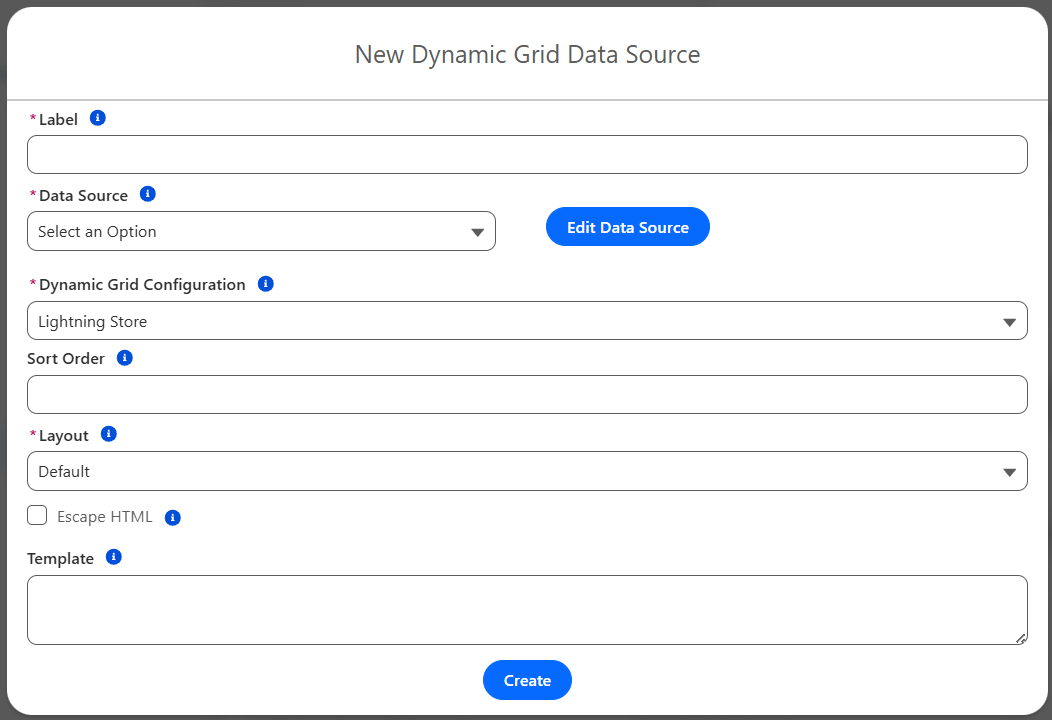
The Dynamic Grid & Actions Setup Wizard provides a centralized, step-by-step way to configure Dynamic Grids and Dynamic Actions under the NAMS Settings tab. Instead of creating and maintaining multiple custom metadata records by hand, admins and implementers can now manage all related configuration in a single, intuitive screen that adapts automatically to their selections.
With the guided setup interface, staff can:
-
Access a single configuration workspace for both Dynamic Grids and Dynamic Actions from the NAMS Settings tab.
-
Create new configuration records or edit existing ones without navigating to separate setup areas.
-
Work with context-aware fields that only display what’s relevant based on prior choices (e.g., grid type, action type, or context).
-
Follow a clear, logical workflow that reduces ambiguity and ensures required information is captured in the right order.
By consolidating multiple steps into one interface, this feature makes it significantly easier for associations to take advantage of the flexibility of the Dynamic Grid framework.
Benefits
-
Reduces setup complexity
Consolidates what used to require multiple metadata records and scattered setup locations into one guided experience, shortening the learning curve for new admins and implementers. -
Decreases configuration errors
Context-aware fields and a structured flow help prevent missing or inconsistent values, improving the reliability of Dynamic Grid and Dynamic Action behavior in production. -
Speeds up implementation
A unified create-and-edit experience lets staff stand up or adjust configurations more quickly, making it easier to iterate on grid and action designs as business needs evolve. -
Improves maintainability
Centralized configuration makes it easier for teams to review, update, and audit Dynamic Grid and Action setups over time, even as staff changes occur. -
Empowers non-technical users
The guided interface lowers the technical barrier for association staff, enabling more team members to safely configure and manage Dynamic Grids without deep system expertise.
Get Started Today
Navigate to NAMS Settings and choose Dynamic Grid & Actions Setup to begin using the guided interface. From there, follow the prompts to create new configurations or update existing ones, leveraging context-aware fields and the unified workflow to streamline your setup process.
Note: Dynamic Grid and Dynamic Grid Actions are only available in Member Portal