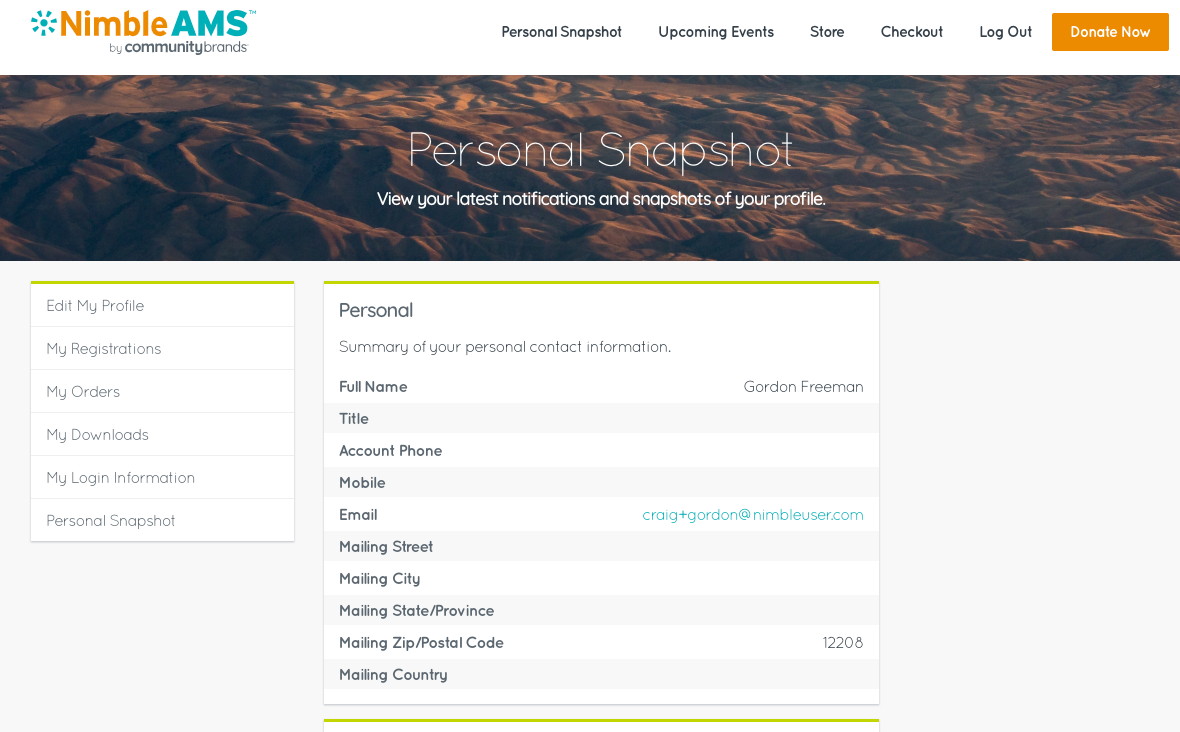
The Community Hub Bold Theme is a new way to customize your organization's Community Hub theme through point and click methods, not code.
Enable the Community Hub Bold Theme
-
From Setup, enter
Custom Metadata Typesin theQuick Findbox, then select Custom Metadata Types. -
Click Manage Records next to the Tag of Community Hub.
-
Click Edit next to the Bold Theme.
-
Select
Is Active. -
Click Save.
Disable the Community Hub Bold Theme
-
From Setup, enter
Custom Metadata Typesin theQuick Findbox, then select Custom Metadata Types. -
Click Manage Records next to the Tag of Community Hub.
-
Click Edit next to the Bold Theme.
-
Clear
Is Active. -
Click Save.
Customizing the Community Hub Bold Theme
Header/Banner Customization
In order to customize the header in the Community Hub Bold Theme, you will need to upload a public static resource (external) with a minimum width of 1500px to optimize the image for multiple viewing experiences.
You will need to repeat these steps for each page you want a custom banner/header to appear on.
-
From any page, access the Community Hub App | Pages.
-
Select the page to customize from the page dropdown menu.
-
Under Header Image, select your static resource.
-
Click Save.
Theme Previews
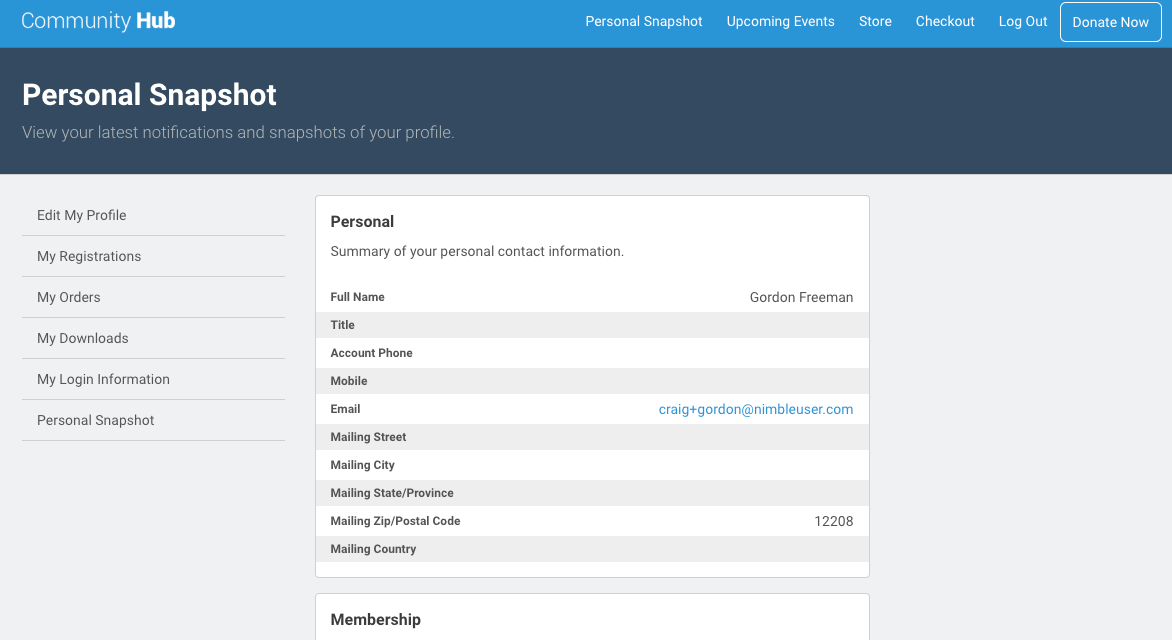
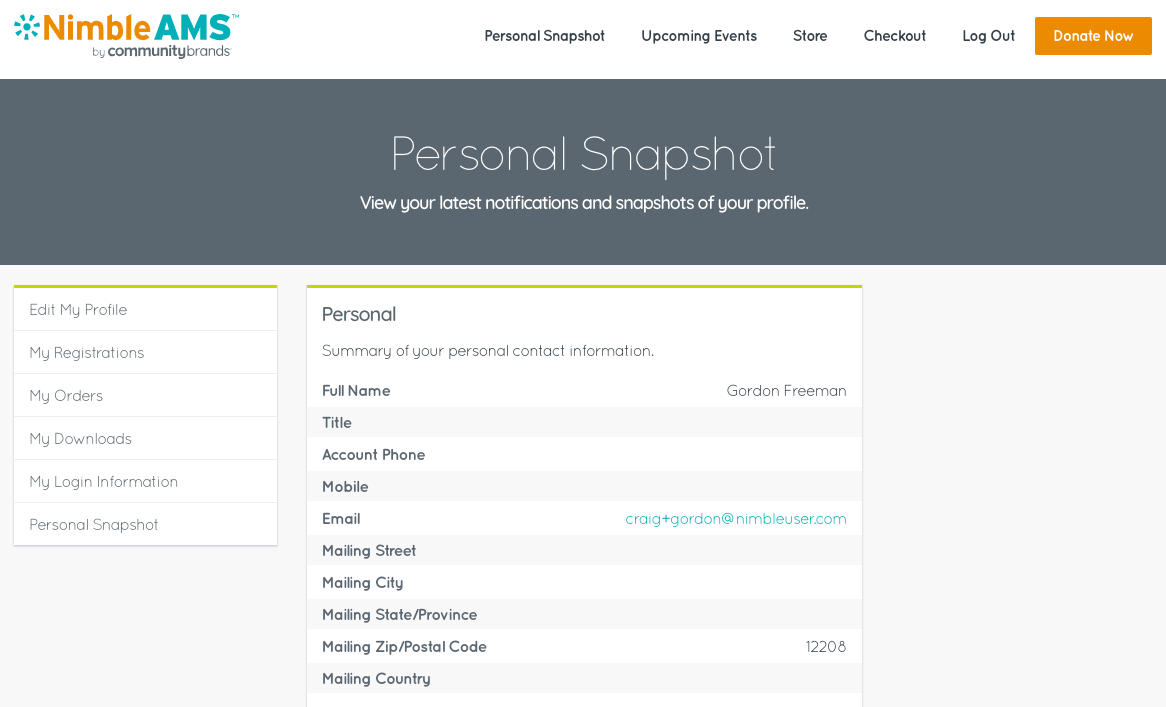
Theme Examples
|
Legacy Theme |
Bold Theme |
|---|---|
|
|
|
Customization Examples