
Member Workflow
This feature operates in the background and does not change the member purchase experience. Members will not see any difference when browsing, selecting, or purchasing products. If a member attempts a transaction with a card that has been blocked, they will see a generic payment failure message directing them to contact support.
Staff Workflow
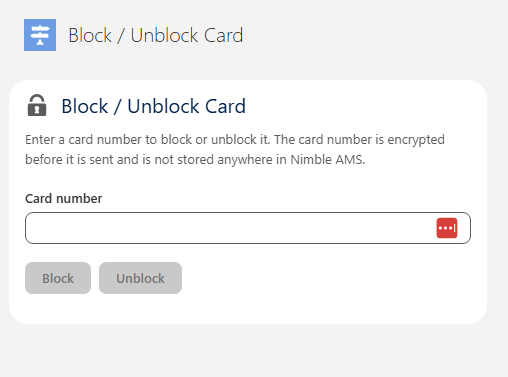
Blocking or Unblocking a Card Number
Staff with the NimbleAMSFraudPreventionAdmin permission set can manually block or unblock a specific card number.
-
Click the App Launcher (9-dot menu) and search for Block / Unblock Card
-
Enter the card number.
-
Select Block or Unblock.
Why You Might Block or Unblock a Card
Reasons to block a card: A card number is reported as fraudulent by another Momentive product or an external source, even if it hasn't yet triggered the automatic failure threshold in Nimble AMS.
Reasons to unblock a card: A legitimate member was automatically blocked after repeated honest mistakes (e.g., a mistyped CVV or an expired card), and support has verified the card is valid. Unblocking reverses a block that was applied in error.