
The Split Revenue feature utilizes a Revenue GL Override record, which acts as a template for income distribution. When this override is linked to a product, the system bypasses the standard "single Revenue GL Account " and instead will use the proportional allocation defined in the template.
Before you begin, confirm the following.
-
GL Account Availability: Confirm that all target General Ledger Accounts you intend to use for splits are already created and set to an Active status.
-
Administrative Permissions: Verify that your user profile has Create and Edit permissions for the Revenue GL Override object, as well as Edit access to the Revenue GL Override lookup fields on the Product and Product Variant objects.
-
Accounting Schema Readiness: Ensure the Revenue GL Override object and its associated fields (Revenue GL 1–5 Account and Percentage) are present and active in your organization. Add the new fields to the product page layout(s) and ensure that access to the Revenue GL Override object has been set.
-
Product Identification: Identify the specific Products or Product Variants that require revenue distribution. Note that because variants do not inherit splits, you must prepare to configure each one individually (for any product variants, the child products (the final selected product) will control the GL).
-
Revenue GL Override Field: The Revenue GL Override field has been introduced to the page layouts as part of our Summer 2026 Release. For all new installations, the Revenue GL Override field will be automatically included to the page layouts in the base configurations.
Action Required for Existing Customers - To ensure we do not disrupt your customized workflows, we do not automatically update page layouts that are currently in use. Therefore, you will need to manually add the Revenue GL Override field to the page layouts.
-
Add Revenue GL Override checkbox field to the Product Layout.
-
Go to Setup → Object Manager and locate the object.
-
In the Custom Objects list, click Product.
-
In the "Page Layouts" list, click Edit next to "Product".
-
Add Revenue GL Override checkbox below Revenue GL Account.
-
Click Save.
-
Repeat these steps for any additional product types that you wish to support with Revenue GL Override.
-
-
-
Validated Allocation Plan: Prepare your split percentages in advance. To pass system validation, the sum of your percentages for each override record must equal exactly 100.00%.
-
Rounding Strategy: Determine the sequence of your GL accounts. Since the system allocates any remaining rounding fractions to the last defined GL account, ensure your account order reflects your organization's reporting preferences.
Step 1: Create a Revenue GL Override Record
Before applying a split to a product, you must define the allocation rules.
-
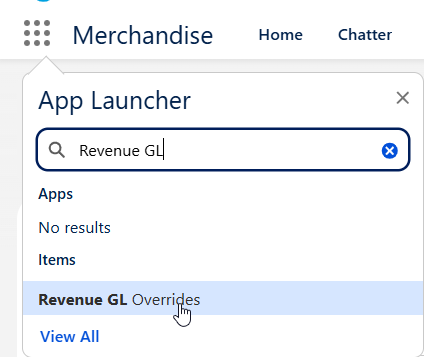
Navigate to the Revenue GL Overrides using the App Launcher and click New (alternatively, use the New Revenue GL Override option available under the Revenue GL Override lookup field directly on a Product record).
-
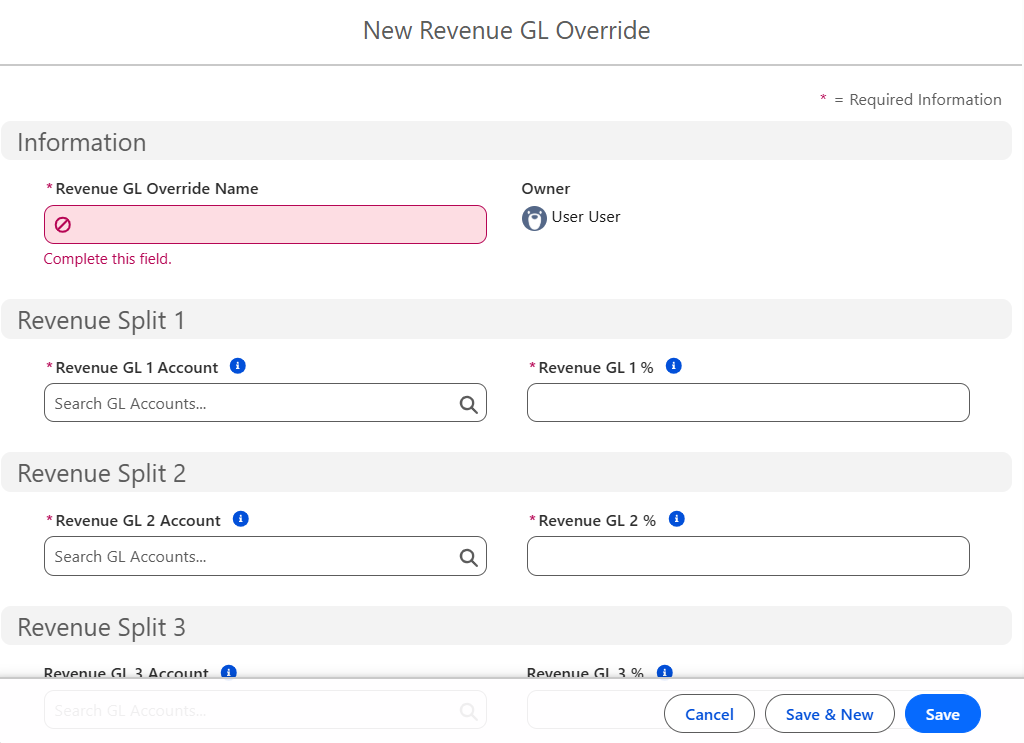
Name the Override: Use a descriptive name (e.g., "Department A/B 70/30 Split").
-
Assign GL Accounts & Percentages:
-
Select Revenue GL 1 Account and enter the revenue percentage in the Revenue GL 1 % field.
-
Continue adding up to 5 pairs. Note: Pairs must be entered in order (GL 1, then GL 2, etc.).
-
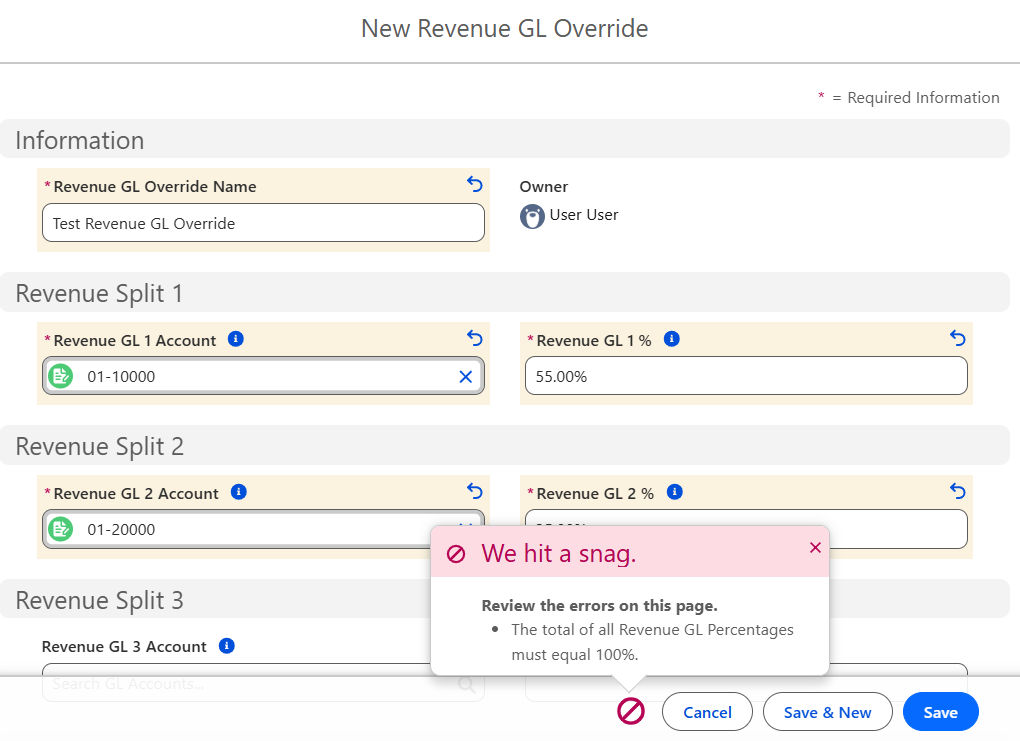
Validate: Ensure the total percentage equals exactly 100.00%. The system will block the save if the total is higher or lower.
-
Save the record.
Step 2: Link the Override to a Product or Variant
Note: For Product Variants, the linked child product is responsible for any financial transactions and will need to have the Revenue GL split defined at that level.
-
Open the desired Product or Product Variant record.
-
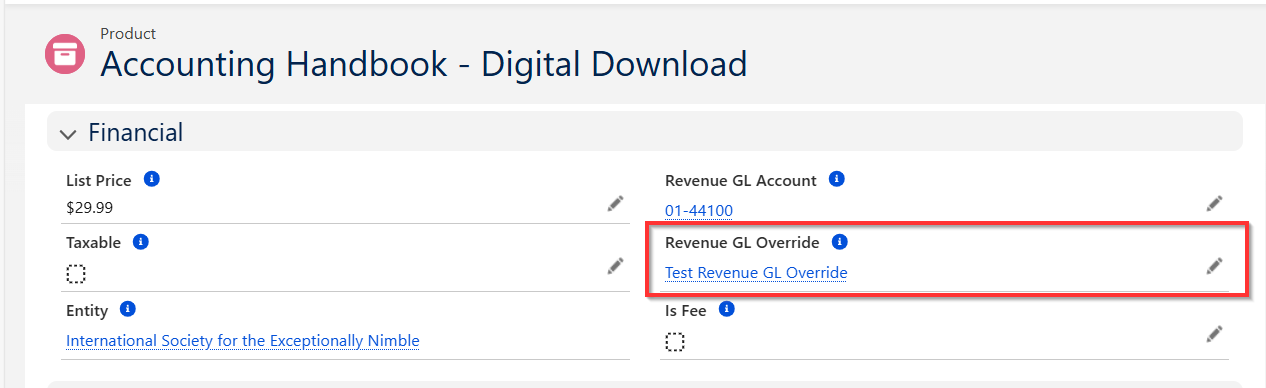
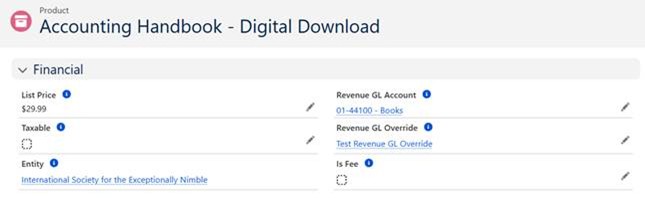
Locate the Revenue GL Override lookup field under the Financial section of the product and select the record created in Step 1.
-
Click Save.
Note on Variants: Variants do not inherit splits from the parent product. Each variant requiring a split must have its own override defined.
Step 3: Understanding Transaction Logic
When an order is processed in Staff View, Nimble AMS evaluates the override at the Time of Order Generation:
-
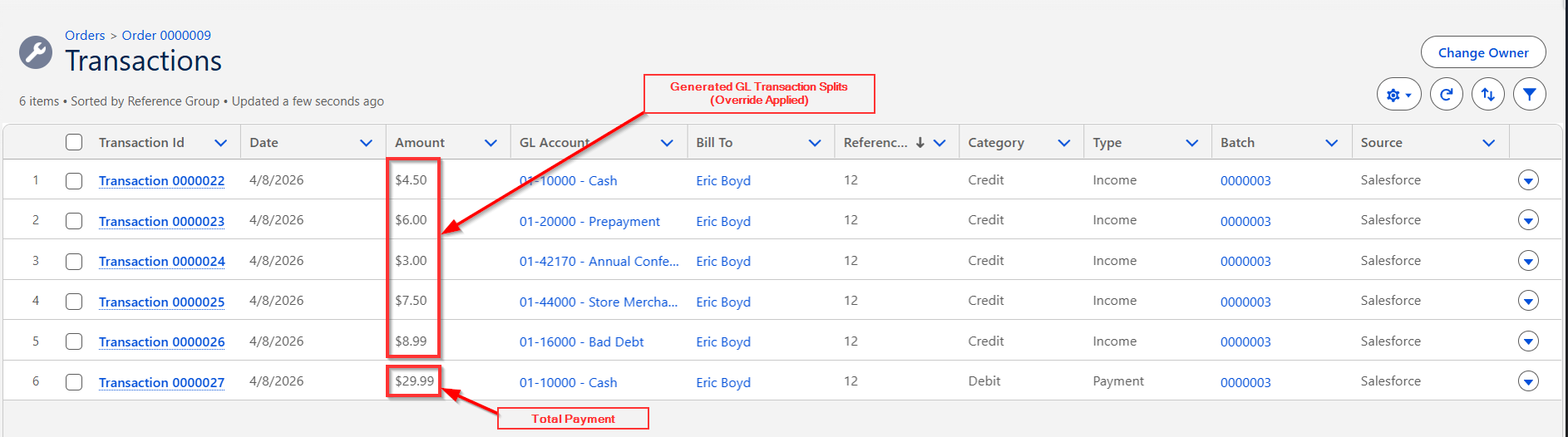
Debit Entry: A single debit is posted to the product’s A/R GL account for the final total.
-
Credit Entries: Multiple credit entries are generated—one for each GL account defined in the split.
-
Price Adjustments: If a $200 product is discounted to $150, a 70/30 split will automatically allocate $105.00 and $45.00 respectively.
-
Rounding: The system uses 2-decimal precision. If a split results in an uneven fraction, the "average" is allocated to the last defined GL account to ensure credits perfectly match the debit.
Creating a Split Revenue Override Record using the Revenue GL Wizard
The Revenue GL Wizard allows the staff user to create new Revenue GL Override records for a product. This wizard overrides the standard Salesforce "New" functionality to provide a streamlined experience, allowing you to easily define and manage split revenue without navigating away from the product record.
How the Wizard Works:
-
Launch Directly from a Product: You can launch the Revenue GL Wizard directly from the product record you are modifying.
-
Automatic Linking: When the wizard is complete, it automatically creates the new GL Override record and links it directly to your current product.
-
Simplified Calculation: Staff can specify the exact dollar ($) value for each GL account involved in the split. The wizard will then automatically calculate the corresponding percentage (%) and save it to the GL Override record.
Steps to Add the "Create/View Revenue GL Override" Action Button
For existing customers to utilize the streamlined Revenue GL Wizard, administrators must manually add the custom action button to the Product page layouts.
-
Navigate to Setup > Object Manager.
-
Locate and click on the Product object.
-
In the left-hand menu, click Page Layouts.
-
Click Edit next to the layout you wish to update (e.g., "Product").
-
Click the Mobile & Lightning Actions.
-
Locate the Create/View Revenue GL Override action.
-
Drag the action down to the Salesforce Mobile and Lightning Experience Actions section of the layout.
-
Click Save.
Steps to Use the Revenue GL Wizard:
-
Navigate to the Product record for which you want to create a split revenue override.
-
Click the Create/View Revenue GL Override action button on the product page.

-
The Create/View Revenue GL Override form will launch directly from your product page.
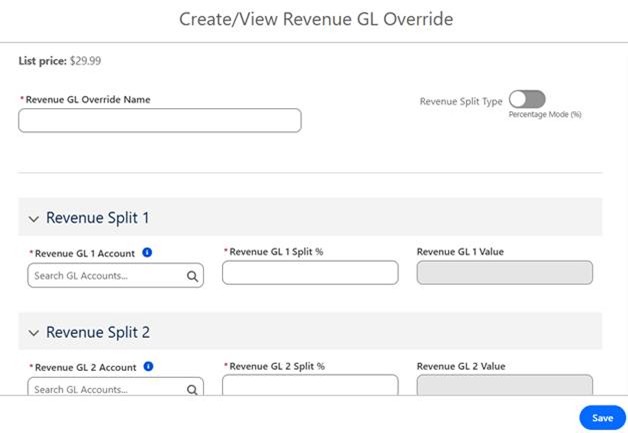
The Create/View Revenue GL Override form contains Revenue Split Type toggle switch, which allows you to choose whether you want to set the form to use ‘Percentage mode’ or ‘List Price mode’.
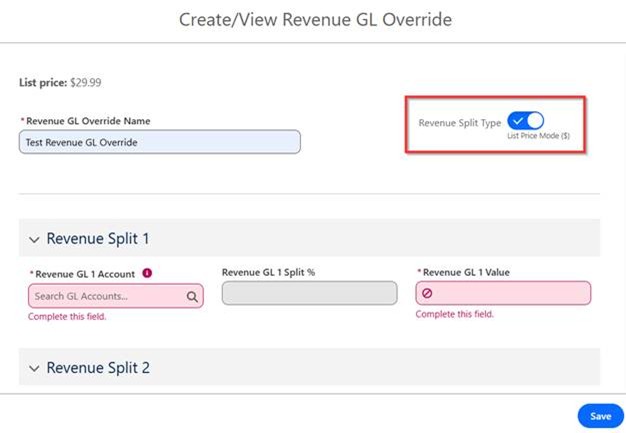
Once you set the Revenue Split Type option to use the List Price Mode, the Revenue GL Split % field becomes disabled and will auto-update once the Revenue GL Value field is updated.
-
Specify GL Accounts: Select the General Ledger (GL) accounts that will participate in the revenue split.
-
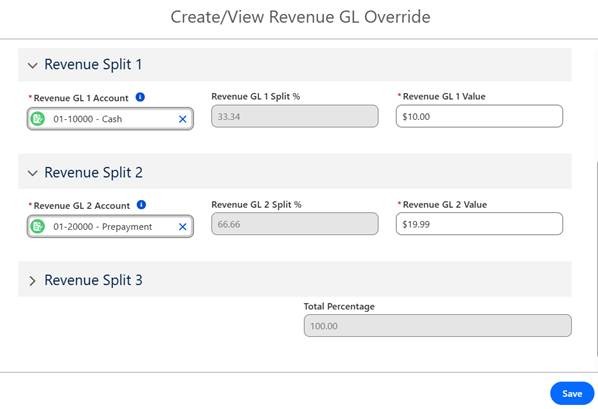
Define Split Amounts: Enter the specific dollar ($) value that should be allocated to each GL account. (The wizard handles the calculations, ensuring the split is accurate and based on your inputs).
-
Review the calculated split percentages and the total amount to ensure accuracy.
-
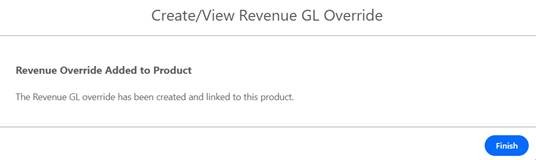
Click Save to complete the wizard. The system will display the confirmation message.
-
Click the Finish button. The new GL Override record is created and linked to your product, and you are returned to the product record.
Deferred Revenue and GL Splitting
This section explains how the Split Revenue functionality works with Deferred Revenue, ensuring that complex income distributions are correctly recognized over time.
For organizations that utilize deferred accounting (such as for annual memberships or subscriptions), the Split Revenue feature is fully compatible with existing deferred revenue methods. When a product is configured for both deferred recognition and a revenue split, the system ensures that the deferred schedule and subsequent recognition transactions honor the specified GL allocations.
How it Works: The Deferred Recognition Process
-
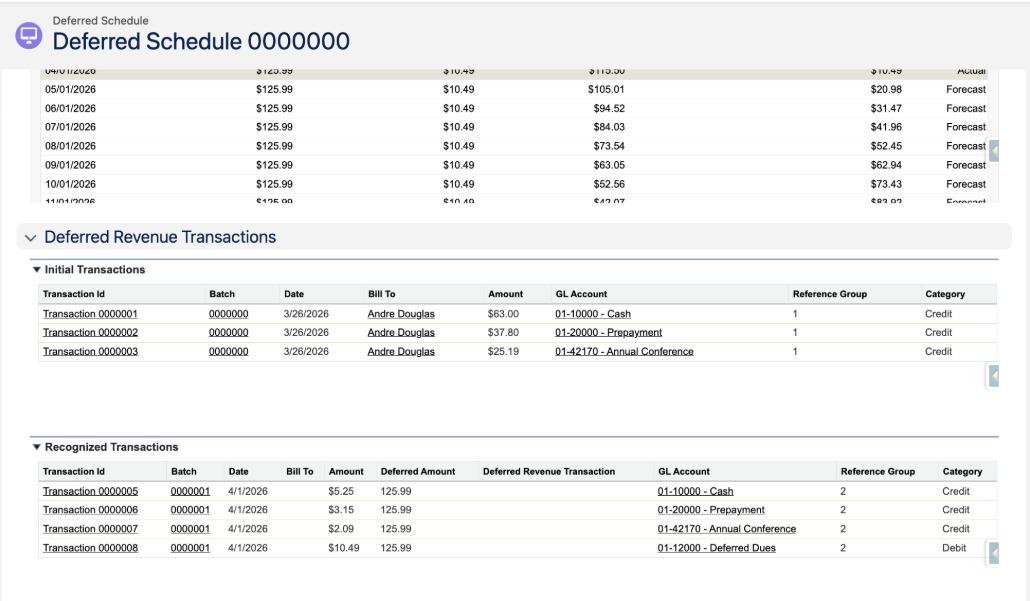
Schedule Generation: Upon completing an order for a deferred product with a GL override, the system generates a Deferred Schedule. This schedule acts as the master record for future income recognition.
-
Initial Transactions: The initial transaction will continue to use the defined Deferred Revenue account as it did previously.
-
Recognized Transactions: When the Deferred Revenue Recognizer Job (the batch process that converts deferred income to earned revenue) is run, the system generates multiple recognized transactions.
-
Instead of a single recognition entry, the system creates individual transactions for each GL account defined in the split.
-
Each transaction is linked back to the original deferred schedule, maintaining a clear audit trail.
-
Configuration Requirements
To ensure deferred revenue is split correctly, the following must be configured on the Product or Product Variant record:
-
Revenue GL Override: An active override record with percentages totaling 100%.
-
Deferred Revenue Method: A valid recognition method (e.g., Monthly, Prorated) must be selected.
-
Deferred Revenue Account: A designated GL account to hold the unearned income before it is recognized across the split targets.
Important Considerations
-
Product Variants: Variants do not inherit revenue splits from the parent product. Each child product must have its own split defined if multi-GL allocation is required.
-
Read-Only at Checkout: Staff cannot override revenue percentages during the order process. Splits are strictly controlled at the product/variant configuration level.
-
GL Account Protection: To maintain financial integrity, you cannot deactivate or delete a GL account if it is currently linked to an active Revenue GL Override record.
-
Historical Data: Changes to a Revenue GL Override only affect future transactions. Transactions already generated (even in open batches) will not be retroactively updated if the override record is modified.
-
Accounting Note: It is highly recommended to select Revenue accounts for splits. Selecting Deferred or Cash accounts may impact how the system handles reconciliations and deferrals.
-
Clarification on the Primary GL Account When Using Overrides: A common point of confusion when setting up Revenue GL Account Overrides is that the standard Revenue GL Account field on the initial Product record remains a required field. This is necessary even if you plan to completely override that single account using a split revenue configuration.
Why is this required? The system always requires a baseline GL account to ensure that all revenue is accounted for, regardless of the activation status of an override. If the Revenue GL Override lookup is set, the system will override the GL account set in the standard Revenue GL Account field. When configuring a split revenue override, the Revenue GL Account field on the product record will only receive revenue if your split revenue configuration is disabled.
Frequently Asked Questions (FAQ)
Can I change the split percentages after a product has been sold?
Yes. However, the change is not retroactive. Any orders already processed will maintain the split that was active at the time of purchase. Future sales will use the new configuration.
What happens if the math doesn't result in an even penny?
Nimble AMS uses rounding logic to ensure the total Credits always equal the total Debit. Any rounding "overage" is typically applied to the last GL account defined in the sequence.
Is there a limit to how many splits I can have?
The current maximum is 5 GL accounts per override record.