
Administrators can create entity crossovers to track financial transactions that occur in more than one entity. For example, products for multiple entities can be processed together in one order when an entity crossover is set up.
Enablement
To enable the display of products from multiple entities on Community Hub, follow the below steps:
-
From Setup, enter
Custom Metadata Typesin the Quick Find box, then select Custom Metadata Types. -
Click Manage Records next to Community Hub.
-
Click Edit next to MultipleCommunitiesWIN18.
-
Ensure that Is Active is not selected.
-
Click Save.
Products of multiple entities will be visible only if MultipleCommunitiesWIN18 is inactive. If it is active, the products of single (primary) entity will be visible.
Create an Entity Crossover
-
In the tab bar, click


-
Click Entity Crossovers.
-
Click New.
-
In
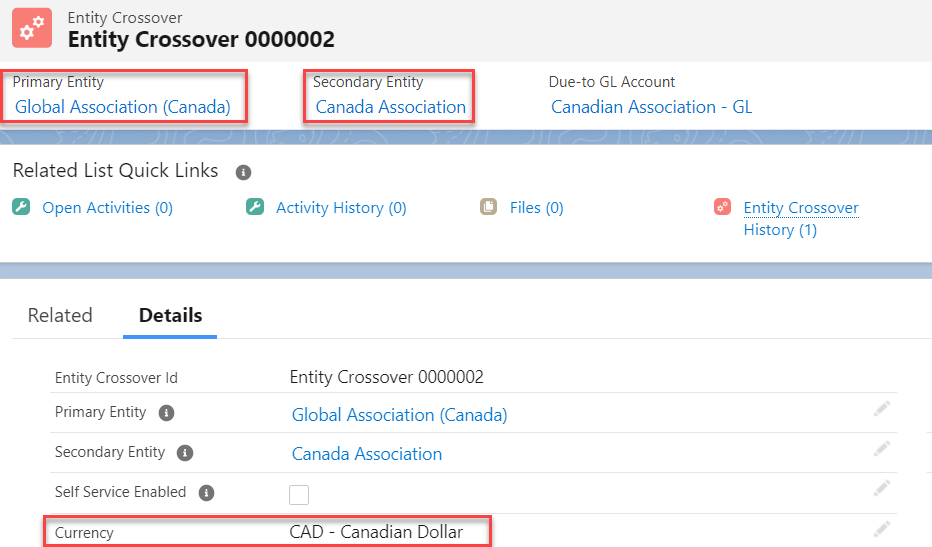
Primary Entity, enter the name of the entity you want to set as the primary, click, and select the entity. ThePrimary Entityreceives payments for orders. -
In
Secondary Entity, enter the name of the entity you want to set as the secondary, click
Secondary Entityallows products to be purchased that are tied to that specific entity. -
In
Due-to GL Account, enter the name of the GL account you want to set for thePrimary Entity, clickPrimary Entity. -
In
Due-From GL Account, enter the name of the GL account you want to set for theSecondary Entity, clickSecondary Entity. -
Select
Self Service Enabled. -
Optionally, in Currency, select the currency value to be USD or CAD.
If you have enabled Salesforce multi-currency, Salesforce introduces the Currency field on all object layouts within your org.
You can create an entity crossover record between two entities only if the same currency is set up on each entity record.
Show Me An Image
-
Click Save.