
Overview
The Join and Renew functionality for Member Portal modernizes how members start and maintain their relationship with your organization. It replaces the legacy, page-by-page experience with a modern and flexible flow interface.
This Join and Renew functionality is only available in Member Portal.
How Does the Join and Renew Flow work?
The Join and Renew experience is powered by separate, configurable flows for Individual and Company scenarios. Although these flows run independently “under the hood,” they are coordinated by a central orchestrator flow that controls how users enter the process and what path they follow.
Configurable Join/Renew Experience (Single Page vs. Multi‑Page)
The Join and Renew process supports both a multi‑page, guided experience and a streamlined single‑page experience. Associations can configure which pattern to use, giving them control over how structured or simplified the process should be for their users.
-
Multi‑page, guided flow
In a multi‑page configuration, the Join/Renew process is broken into clear, logical steps (e.g., account validation, membership selection, options/add‑ons, review). This:-
Provides a more guided experience, surfacing only the fields and decisions relevant at each step
-
Reduces cognitive load by not overwhelming the user with all options at once
-
Works well for more complex membership structures, company joins/renews, and scenarios with multiple optional products, chapters, or donations
-
-
Single‑page, streamlined flow
In a single‑page configuration, all required information and options are presented on one page. This:-
Minimizes the number of clicks and page transitions
-
Supports quick completion for straightforward, individual membership scenarios
-
Is ideal when the association wants a simple, fast join/renew experience with fewer decision points
-
These configurations allow organizations to align the Join/Renew experience with its own complexity, branding, and user expectations—choosing a more step‑by‑step guided flow or a condensed single‑page experience, and adjusting over time as needs change.
Orchestrator and Account Validation
Every Join or Renew action begins with an account validation step managed by the orchestrator flow. This step:
-
Confirms the user’s identity and role
-
Ensures the account information is current
-
Determines whether the user should follow an Individual or Company flow
-
Evaluates the user’s membership status to decide whether a Join or Renew path is appropriate
For example, only a designated Company Manager is permitted to initiate a Join or Renew on behalf of a company. If a Company Renew process is requested but the account is not a valid Company Manager, access to that path is rejected.
Account Information Validation
The next step in the Join and Renew process is an Account Information Validation screen. This screen:
-
Displays the account’s current information (such as name, contact details, and other key profile fields)
-
Allows the user to review and update any outdated or missing information
-
Allows the user to confirm their information before moving forward in the process
By requiring this validation step at the start of every Join and Renew process, associations gain a reliable touch point with the account each time the user joins or renews, helping to keep data accurate and up to date.
Individual vs. Company Flows
After account validation, the orchestrator hands the process off to either the Individual or Company flow. Each flow can be configured independently to support different membership structures and business rules, but they share a common pattern:
-
Select Membership Type
The user is presented with the available membership types for their scenario (individual or company) and must select the appropriate membership product. -
Configure Membership Options
Based on configuration, the flow can prompt the user to:-
Add optional membership products
-
Make chapter selections
-
Indicate whether they would like to include a donation as part of the transaction
-
-
Real‑Time Order Summary
A persistent summary at the bottom of the screen continuously reflects to current membership orders values. This ensures the user always understands the cost of their Join or Renew order as they move through the flow.
Member Portal Shopping Cart
Once the user has completed all required steps in the Individual or Company flow, the orchestrator directs them to the Member Portal shopping cart. Here they can:
-
Review the full contents of their order
-
Confirm pricing, options, and donations
-
Proceed to checkout using the standard Member Portal payment experience
This orchestrated approach separates Individual and Company logic while providing a consistent, guided Join and Renew experience for end users.
Setup
-
Create a page in Member Portal named “Join and Renew” (Note, this page is part of the Starter Template)
-
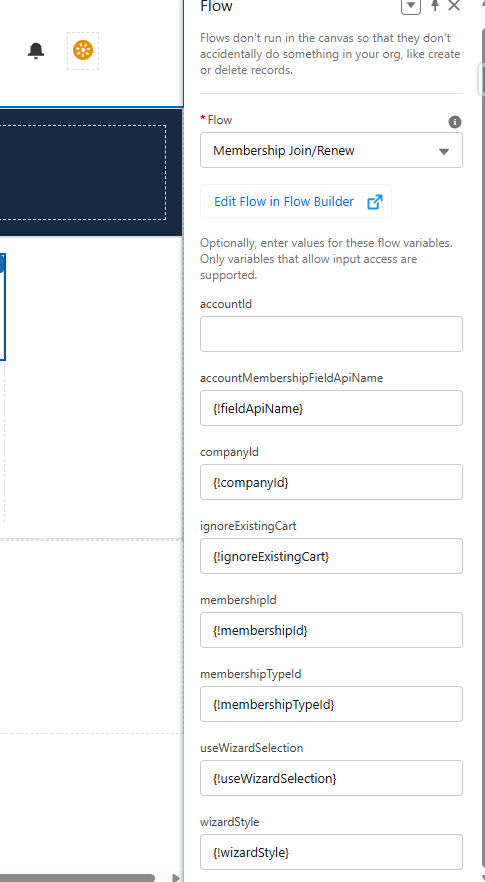
Add a Flow component to the page
-
Select the “Membership Join/Renew” flow
-
Set the flow input variables:
-
accountMembershipFieldApiName --> {!fieldApiName}
-
companyId → {!companyId}
-
ignoreExistingCart → {!ignoreExistingCart}
-
membershipId → {!membershipId}
-
membershipTypeId → {!membershipTypeId}
-
useWizardSelection → {!useWizardSelection}
-
wizardStyle → {!wizardStyle}
-
-
-
Publish the site
Note: This guide does not contain steps for setting up the Membership Display LWC or for updating the Flow itself.
How To Get Started
Many associations have a custom Join and Renew process already in place. These existing processes will not be automatically upgraded. Please reach out to your Customer Success Manager to discuss how you can take advantage of this new functionality.