
The Personal Snapshot page is provided using Dynamic Grid implementations combined with Dynamic Grid Actions and Salesforce Flows. This allows for customization of the user experience while taking advantage of the powerful features of Member Portal. The page is available by default when using the Member Portal Starter Template but must be enabled.
Member Portal
Personal Snapshot is available as the “Home Page” in Member Portal
Enabling and Disabling the Page
-
Remove any custom CSS that is hiding the Home link in the navigation menu (part of standard setup steps)
-
Update the sites home page
-
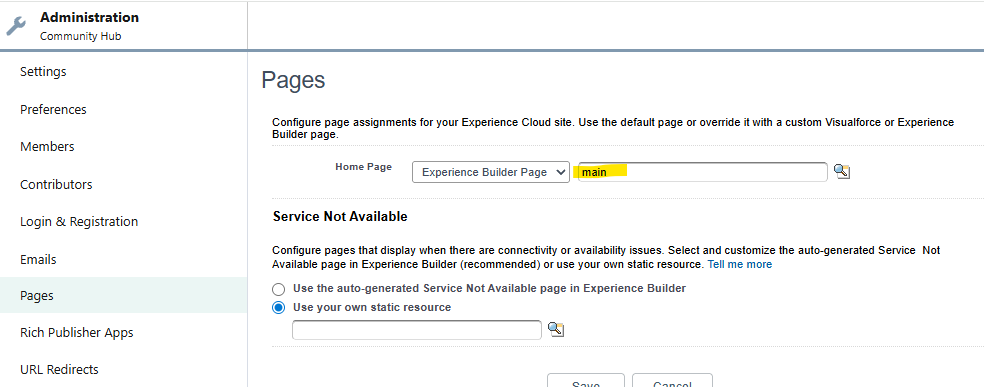
Setup > All Sites > Workspaces > Administration > Pages > home Page
-
Set type to “Experience Builder Page” and value to “Main”
-
-
-
To disable the page, reverse the above steps and set the Home Page to Visualforce
-
Update the Logout URL
-
<BASEURL>/communityhub/NC__Login?startURL=/communityhub/s
-
ex: “https://xyz--staging.sandbox.my.site.com/communityhub/NC__Login?startURL=/communityhub/s”
-
-
Profile Information Banner
By default, the Profile Information Banner provides visibility into the current Accounts Name, Title, Phone, Email and City/State. Clicking “Edit Profile” will launch the Manage Account Information screen flow, which provide more visibility into an Account’s information including Billing and Shipping addresses as well as a way to upload a new profile image. If additional demographic fields are needed, the screen flow can be easily updated to collect and display those fields.
The Edit Profile button is provided using Dynamic Grid Actions, and the labels and locations can be easily updated by editing the associated Custom Metadata Type record: Setup > Custom Metadata Types > Dynamic Grid Actions > “Edit Profile”.
See Dynamic Grid Actions: Enablement and Configuration for more information
The Profile Information Banner Dynamic Grid is composed of the following Metadata records:
|
SOQL Query |
Account Profile |
|
Datasource (namz) |
Account Profile |
|
Dynamic Grid Datasource |
Account Profile Banner |
|
Dynamic Grid Configuration |
Account Profile Banner |
My Affiliations
My Affiliations gives users a view of their current and past affiliations and allows them to create a new one or end an existing on. Clicking “Manage Affiliation” will launch the “Manage Affiliation” screen flow.
The Manage Affiliation button is provided using Dynamic Grid Actions, and the labels and locations can be easily updated by editing the associated Custom Metadata Type record: Setup > Custom Metadata Types > Dynamic Grid Actions > “Manage Affiliation”.
See Dynamic Grid Actions: Enablement and Configuration for more information
The My Affiliations Dynamic Grid is composed of the following Metadata records:
|
SOQL Query |
My Affiliations |
|
Datasource (namz) |
My Affiliations |
|
Dynamic Grid Datasource |
My Affiliations |
|
Dynamic Grid Configuration |
My Affiliations |
To allow users to create a new Affiliation, please install the https://appexchange.salesforce.com/appxListingDetail?listingId=a0N3A00000FMYinUAH. This will be placed on the My Affiliations tab above the Dynamic Grid component and configured to trigger the “Manage Affiliation” flow.
Flow Name: Manage_Affiliation
Button Label: Create New Affiliation
Button Alignment: Left
My Registrations
My Registrations gives users a view of their upcoming event registrations and allows them to View more information. Clicking “Manage Registration” will direct the user to the Community Hub ViewRegistration page.
The button is provided using Dynamic Grid Actions, and the labels and locations can be easily updated by editing the associated Custom Metadata Type record: Setup > Custom Metadata Types > Dynamic Grid Actions > “Manage Registration”.
See Dynamic Grid Actions: Enablement and Configuration for more information
The My Registrations Dynamic Grid is composed of the following Metadata records:
|
SOQL Query |
My Upcoming Registrations |
|
Datasource (namz) |
My Upcoming Registrations |
|
Dynamic Grid Datasource |
My Upcoming Registrations |
|
Dynamic Grid Configuration |
My Upcoming Registrations |
Account Management Screen Flow
The Account Management screen flow allows users to review and update key details about their account that go beyond basic profile information. Clicking "Edit Account" launches the Account Management screen flow, which guides users through reviewing and updating core account attributes such as email, phone number and addresses.
The Edit Account button is provided using Dynamic Grid Actions, and the labels and locations can be easily updated by editing the associated Custom Metadata Type record: Setup > Custom Metadata Types > Dynamic Grid Actions > "Edit Account".
See Dynamic Grid Actions: Enablement and Configuration for more information
Builders can easily update the fields displayed and updated by editing the screen flow.
Learn more about Salesforce Flows Here: https://trailhead.salesforce.com/content/learn/trails/build-flows-with-flow-builder
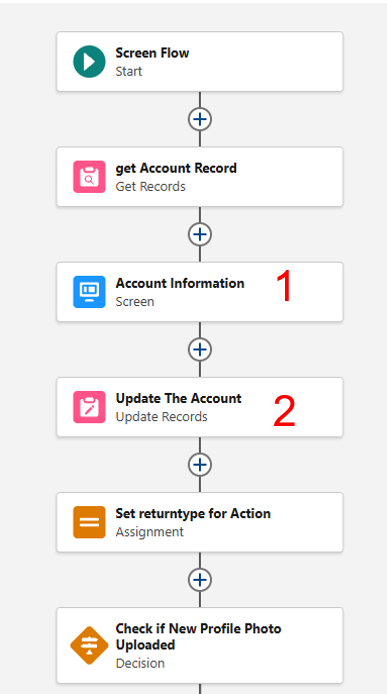
Navigate to Setup > Process Automation > Flows and select “Account Information Management”. From here, you can edit the “Account Information” screen (Item #1) to add, remove or reorder displayed fields.
Note: If you update the displayed fields in the “Account Information” screen, ensure that you also update the “Update The Account” (Item #2) node to include those changes. Failure to add new fields to the update node will result in changes not saving to the Account record.
Terms and Conditions
Member Portal ships with the ability to display and require the acceptance of Terms and Conditions before allowing the display of the Personal Snapshot page. This capability uses a Page Variation + Audience to accomplish this.
To edit the Terms and Conditions that are displayed
-
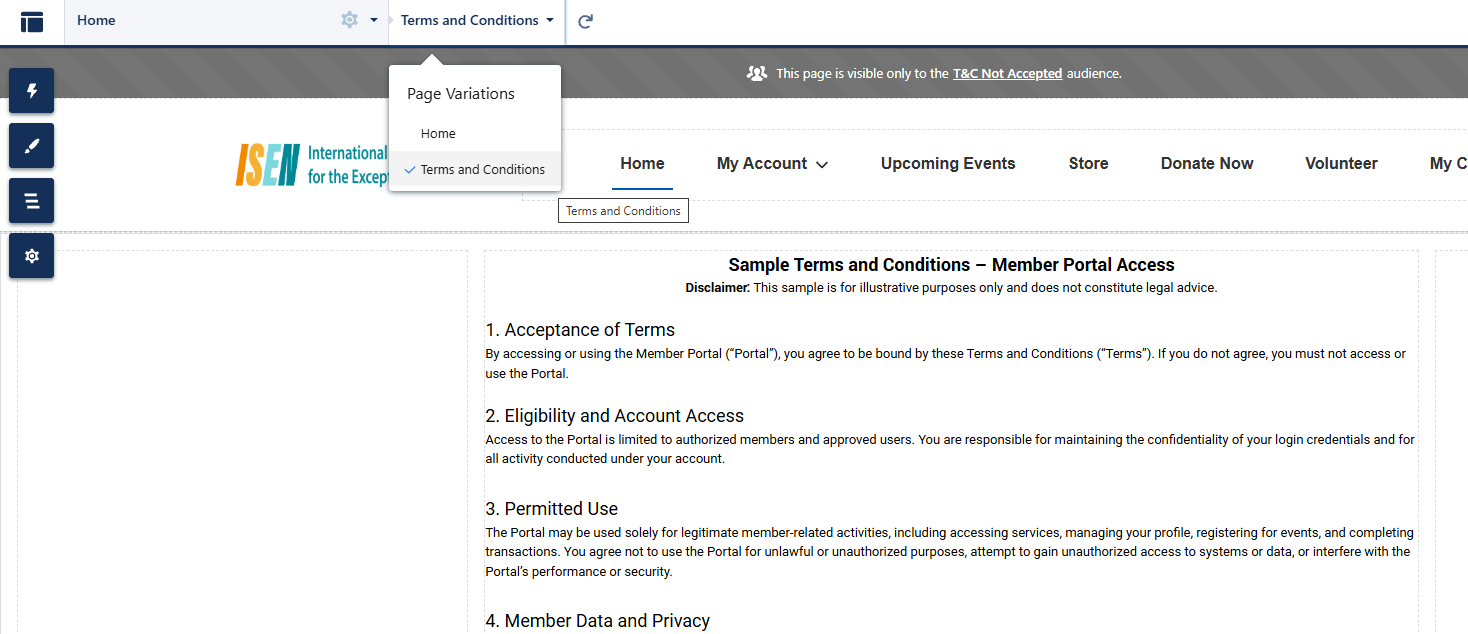
Select the “Terms and Conditions” page version for the Home page in Builder:
-
Select the Sample text on the page and directly edit using the Rich Text component.
-
Publish the site.
Note: This Page Variation is controlled by an Audience: “T&C Not Accepted”, which reads the value of “Terms and Conditions Agreement Status” on the currently viewing user’s Account record.
This value is updated when the user selects “I Agree” on the page, by triggering the “Member Portal Terms and Conditions” flow.
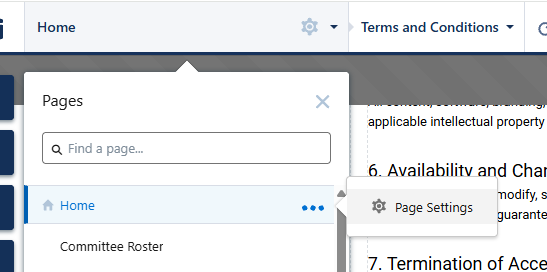
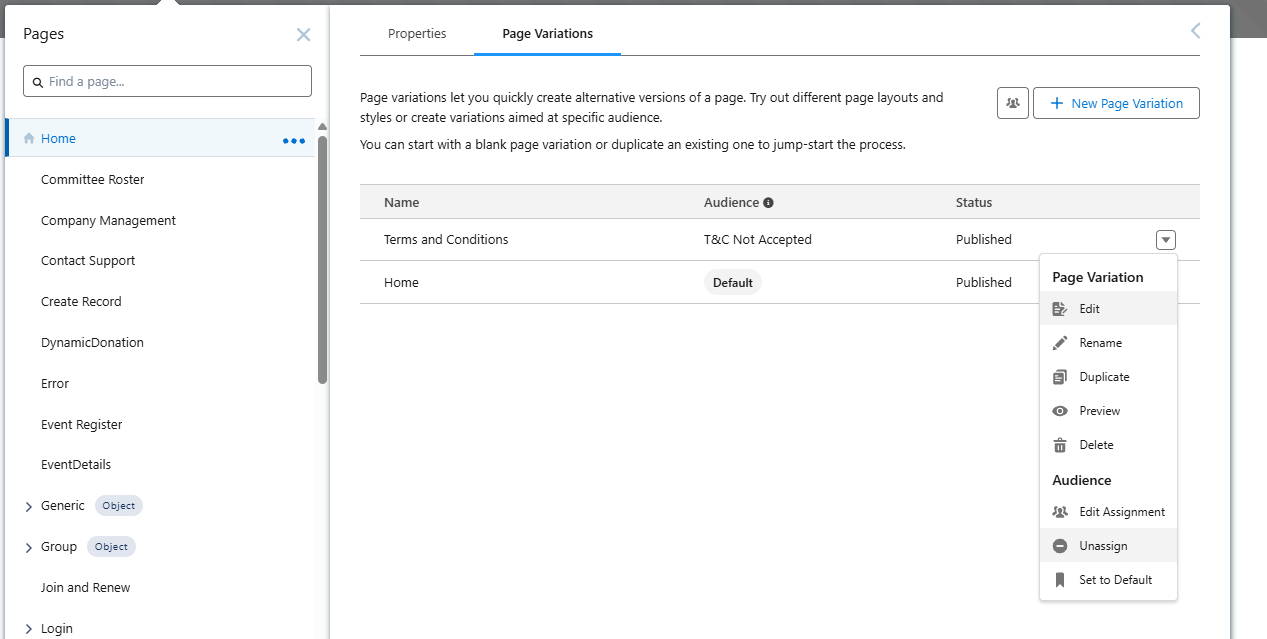
To disable Terms and Conditions, open Page Settings for the Home page by selecting the '…' menu, and clicking Page Settings:
-
From the dropdown menu on the Terms and Conditions Page Variation, select “Unassign”
-
Publish the site