
Processing Fees is only supported for Member Portal and is designed for UOA (Unified Order Architecture)
NOTE: Processing Fees are only supported in Member Portal
This guide outlines the steps required to use the Processing Fee feature in the Member Portal. This feature allows organizations to apply dynamic fees based on payment methods and order totals.
Key Highlights:
-
Trigger-Based Application: Fees are displayed and applied only when a Processing Fee is configured in the backend and a specific payment method (e.g., Credit Card, ACH) is selected by the user in the Member Portal.
-
Calculation Logic: Fees can be configured as either a Flat Fee or a Percentage. Percentage-based fees are calculated against the grand total, including shipping and taxes.
-
Threshold Ranges: Administrators can define lower and upper total amount thresholds. The system selects the appropriate fee record based on where the order’s grand total falls within these ranges.
-
Opt-In Flexibility: Fees can be set as "Opt-in by Default" (automatically checked) or require the user to manually check a box.
-
Product and Entity Level Control: A new field, "Allow Processing Fee," must be toggled on specific products or product types to determine if they (are used in the calculation of the PF) should contribute to or trigger fee calculations.
-
Customizable Messaging: The message displayed to the user on the checkout page is managed via custom labels, allowing organizations to maintain clear communication about why the fee is being applied.
Prerequisites:
Before proceeding, you must activate the Processing Fee functionality by reading and agreeing to the Surcharge Fee Agreement.
NOTE: This agreement must be completed by the Client.
-
Navigate to NAMS Setup > Processing Fee Configuration
-
View and read the Agreement
-
Check “I Agree”
-
Click Next
-
Click Activate
Configure Permissions
Ensure the Staff User and Community Hub profiles have "Edit" access to the following record types and fields:
-
Access to the Processing Fee product record type
-
Product Object: “Allow Processing Fee” field
-
Entity Order Item Object: “Allow Processing Fee” field
-
Processing Fee Object: Read all/ Edit all
Add the Processing Fee tab to make the object visible to users
-
From setup, search for User Interface > Tabs
-
Click New, and select the Object “Processing Fee”
-
Select a Tab Style
-
-
Click Next, Next, Save (Accepting all the default values on each screen)
Ensure that any assigned page layouts for Processing Fees have all the fields available
-
Navigate to Object Manager
-
Go to Setup
-
Select Object Manager
-
Search for and select the Processing Fee object
-
-
Access Page Layouts
-
In the left-hand menu, click Page Layouts
-
-
Review Each Page Layout
-
Open each page layout that is assigned to profiles
-
(Optional) Click Page Layout Assignment to see which layouts are used by which profiles
-
-
Verify Required Fields Are Present
-
Confirm that all required fields are included on the layout
-
Name, Fee Type, Fee Value, Product, Payment Method Type, Entity Payment Gateway, Lower Threshold, Upper Threshold
-
Optionally, add any non-required fields: Opt-in by Default, Mandatory
-
-
Check that fields are placed in appropriate sections for usability
-
-
Add Missing Fields
-
From the palette at the top, drag any missing fields onto the layout
-
Place them in a logical section (or create a new section if needed)
-
Create an Entity Order Item configuration record to allow processing fees to be included in orders for each entity as needed.
-
Navigate to an Entity and click the Entity Order Items related list
-
Click New to create a new record
-
Set the Entity lookup to the entity you are configuring processing fees for
-
Set the Order Item Configuration lookup to Processing Fee
-
Set the AR GL Account
-
Save the record
-
Repeat for each entity that requires processing fee support
How to Setup a Processing Fee
This section outlines the steps required to configure and use the Processing Fee feature in the Member Portal. This feature allows organizations to apply dynamic fees based on payment methods and order totals.
Step 1: Initial System Setup
Before creating fee records, the system must have the correct product and permissions in place.
Create the Processing Fee Product
This record acts as a "template" for the fee line item on orders. The Processing Fee product is added to an order to represent the processing fee.
-
Name: Processing Fee
-
Type: Processing Fee
-
Unit Price: $0.00
-
Is Active: True
-
Self Service Enabled: True
Step 2: Defining Processing Fee Rules
You can create multiple rules to cover different order ranges and payment types.
Note: Ensure processing fees do not overlap, as validation rules will block saving.
-
Create Processing Fee Records
Navigate to the Processing Fee object and create records based on your business logic.
You will need to specify the:
-
Processing Fee Name
-
Payment Method Type (Credit Card or Bank Account)
-
Entity Payment Gateway - This is the entity/gateway combination that will be eligible for Processing Fees
-
Type and Amount: Flat or Percentage
-
Lower and Upper Threshold: This defines the range of sub totals that the Processing Fee will apply for. It is calculated based on the total of all Processing Fee Eligible products in the order.
-
Product: This is the product that will represent the fee when it is applied
Processing Fees are available as Flat or Percentage based. Each will calculate a Processing Fee in a different way.
-
Flat Processing Fees (Fixed Amount): A flat processing fee is a set amount added to a transaction, regardless of the total value (e.g., $2 per transaction).
-
Percentage Processing Fees (Proportional Amount): Percentage-based processing fees are amounts that scale with the total transaction value (e.g., 1.5% of a $100 sale = $1.50; 3.0% of $1,000 = $30). The percentage is calculated based on the total of the “Fee Eligible” products in the order.
Example Scenario 1: Required Flat Fee for Small Orders
-
Range: $20.00 (Lower) to $30.00 (Upper)
-
Lower Threshold: $20.00
-
Upper Threshold: $30.00
-
-
Fee Type: Flat
-
Fee Value: 5 (Applied as $5.00)
-
Entity Payment Gateway: Select the specific Entity Payment Gateway that the fee will apply to. This fee will only be applied when this gateway is used for payment processing.
-
Payment Method Type: Select the specific Payment Method Type (Credit Card or Bank Account).
-
Product: Link to the "Processing Fee" product created in Step 1.
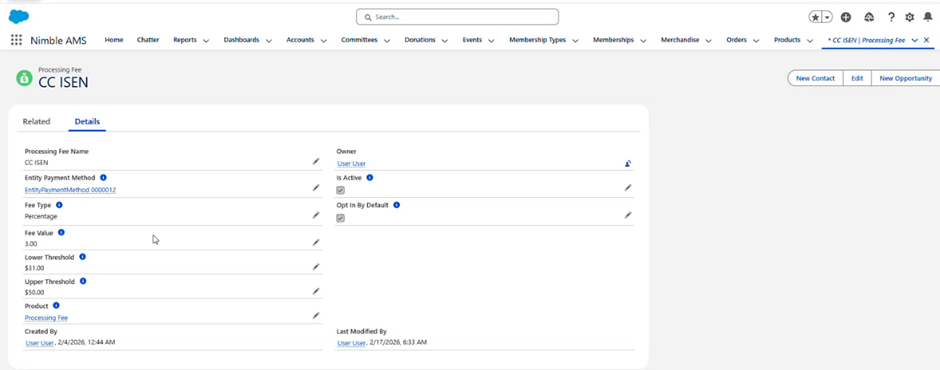
Example Scenario 2: Optional Percentage Fee for Larger Orders
-
Range: $31.00 (Lower) to $50.00 (Upper)
-
Lower Threshold: $31.00
-
Upper Threshold: $50.00
-
-
Fee Type: Percentage
-
Fee Value: 3 (Applied as 3% based on the sum of fee eligible products in the order)
-
Entity Payment Gateway: Select the specific Entity Payment Gateway that the fee will apply to. This fee will only be applied when this gateway is used for payment processing.
-
Payment Method Type: Select the specific Payment Method Type (Credit Card or Bank Account).
-
Product: Link to the "Processing Fee" product created in Step 1.
-
Opt In By Default: The option to add a fee is pre-selected for users and they will be able to remove it.
Validation Rules
The system automatically enforces several rules to prevent configuration conflicts:
-
Percentage Fee Cap: For compliance and security, any fee using the "Percentage" type must have a value between 0% and 5%. Attempts to save a value greater than 5% will trigger an error.
-
Understanding Processing Fee Overlap Logic
To ensure financial accuracy and prevent duplicate charges, Nimble AMS prevents the creation of overlapping fee ranges. However, an overlap is only considered a conflict if the following three attributes are identical:
-
The "Unique Key" for Overlap Detection The system only triggers the "Processing Fee ranges cannot overlap" error if a new record shares the exact same:
Payment Method Type (e.g., Credit Card vs. Bank Account)
Entity Payment Gateway (The specific gateway link, e.g., ISEN x Gateway 00)
Currency (Relevant for multi-currency environments)
-
When an Overlap Error Occurs If you attempt to create a second fee record for the same Payment Method and same Gateway where the Lower Threshold or Upper Threshold falls within the range of an existing record, the system will block the save.
Example Conflict:
Record A: Credit Card | Gateway 00 | Range: $20 – $50
Record B: Credit Card | Gateway 00 | Range: $35 – $60 (ERROR: Overlaps Record A)
3. Permitted "Overlaps" (False Positives)
Ranges can overlap safely without error if at least one of the primary identifiers is different.
-
Different Payment Methods: You can have a Credit Card fee for $20–$50 and a Bank Account fee for $35–$60 on the same gateway.
-
Different Gateways: You can have a Credit Card fee for $20–$50 on "Gateway A" and a Credit Card fee for $35–$60 on "Gateway B."
-
Open-Ended Range Validation: The system also validates open-ended ranges (where the Upper Threshold is null). Multiple open-ended records for the same payment method will be flagged as an overlap.
Applying Tiered Processing Fees During Checkout and Donations
An example of how the tiered processing fee feature can be applied to orders, automatically calculating the correct fee based on the checkout total or donation amount. This scenario demonstrates a common setup that mixes a flat fee for smaller transactions with percentage-based tiers for larger ones.
Sample Processing Fee Schedule
Let’s say you have configured a processing fee with the following rules:
|
Transaction Amount Range |
Processing Fee Calculation |
|
Up to $50.00 |
A flat fee of $5.00 is applied. |
|
$50.01 – $99.99 |
A fee of 3% of the total order amount is applied. |
|
$100.00 and above |
A fee of 1.5% of the total order amount is applied. |
Fee Calculation Scenarios
Here’s how the fee is calculated for different amounts:
Scenario 1: Small (Flat Fee applies)
-
Amount: $45.00
-
Fee Rule: This falls in the Up to $50.00 range.
-
Calculation: The system applies the $5.00 flat fee.
-
Total Processing Fee: $5.00
-
Total Payment: $50.00 ($45.00 + $5.00)
Scenario 2: Mid-Range (3% Fee applies)
-
Amount: $75.00
-
Fee Rule: This falls in the $50.01 – $99.99 range.
-
Calculation: $75.00 x 3% = $2.25.
-
Total Processing Fee: $2.25
-
Total Payment: $77.25 ($75.00 + $2.25)
Scenario 3: Large (1.5% Fee applies)
-
Amount: $250.00
-
Fee Rule: This falls in the $100.00 and above range.
-
Calculation: $250.00 x 1.5% = $3.75.
-
Total Processing Fee: $3.75
-
Total Payment: $253.75 ($250.00 + $3.75)
Step 3: Enabling Fees on Items
For a processing fee to appear during checkout, the items in the cart must be "eligible." You can enable this in two ways:
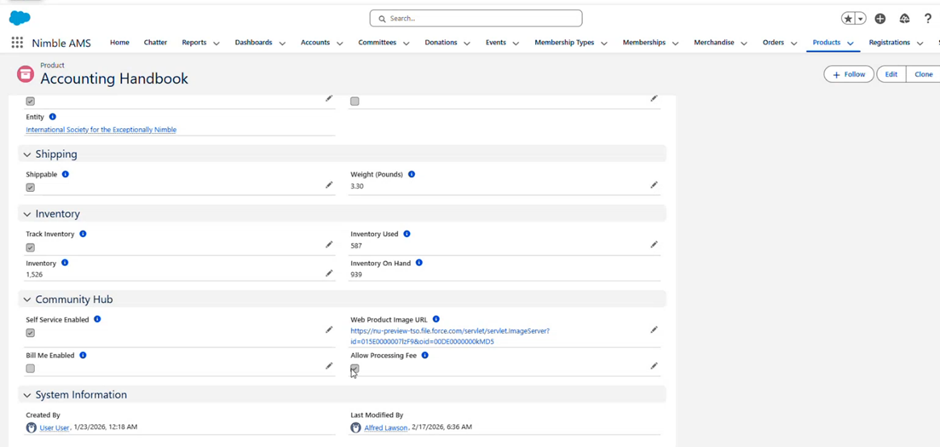
Option A: At the Product Level
-
Navigate to a specific Product record (e.g., a Membership or Merchandise item).
-
Check the Allow Processing Fee checkbox.
-
Result: Only orders containing these specific products will trigger the fee calculation.
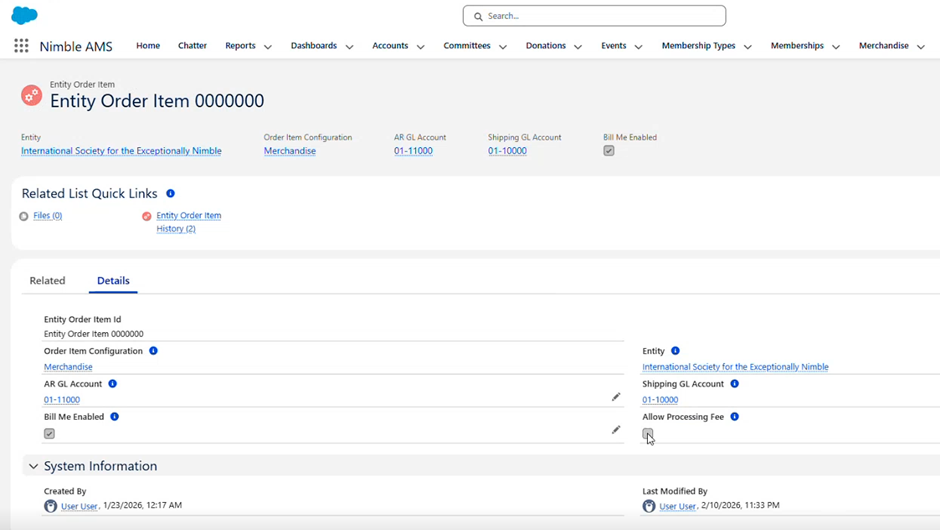
Option B: At the Category (Entity Order Item) Level
-
Navigate to the Entity Order Item record for a specific product type and entity.
-
Check the Allow Processing Fee checkbox.
-
Result: All products of that type (e.g., all "Merchandise") will automatically be eligible for the processing fee without updating individual records.
Step 4: How to Use (End-User Experience)
-
Checkout and Donation LWC Page on Load
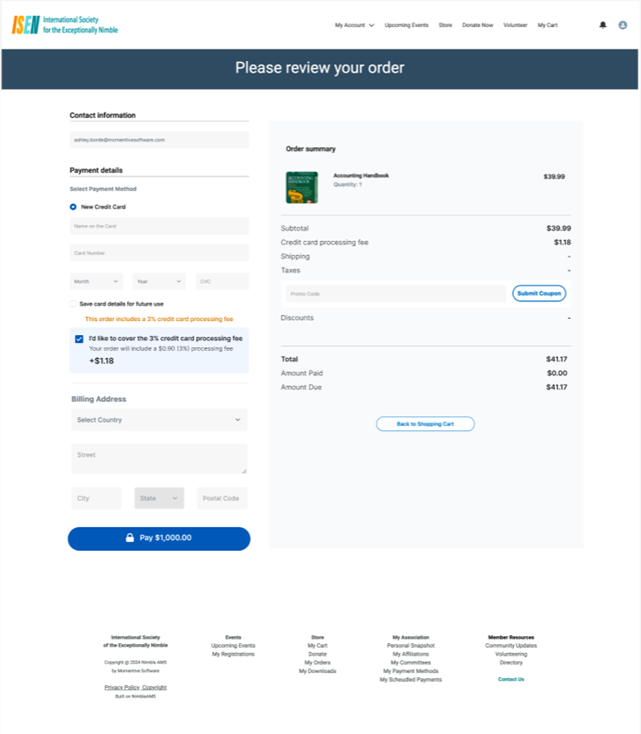
The user adds eligible products to their cart or performs a donation transaction. The cart or donation total (of all fee eligible products) must fall within the defined Lower and Upper Thresholds for a fee rule to activate. This total controls what Processing Fee configuration is selected and what the final calculated fee will be.
-
Payment Method Selection
-
Select Payment Method: When a Payment Method is chosen (Such as Credit Card”) if a matching fee is found, the fee component will display.
-
Interaction with the Processing Fee:
-
If Opt-in by Default is true, the fee is added automatically and the user can deselect it. When it is deselected, the fee will be removed from the order and the total will update.
-
If Opt-in by Default is false, the fee is will not be added automatically and instead, the user can choose to include it. When it is selected, the fee will be added to the order and the total will update.
-
-
Dynamic Calculation
-
The system calculates the fee based on the total of “fee eligible” products in the order (Subtotal + Shipping + Tax).
-
If the user changes their shipping method or adds/removes items, the fee recalculates in real-time to ensure it still falls within the valid threshold.
Step 5: Post-Purchase Verification
Once the order is processed:
-
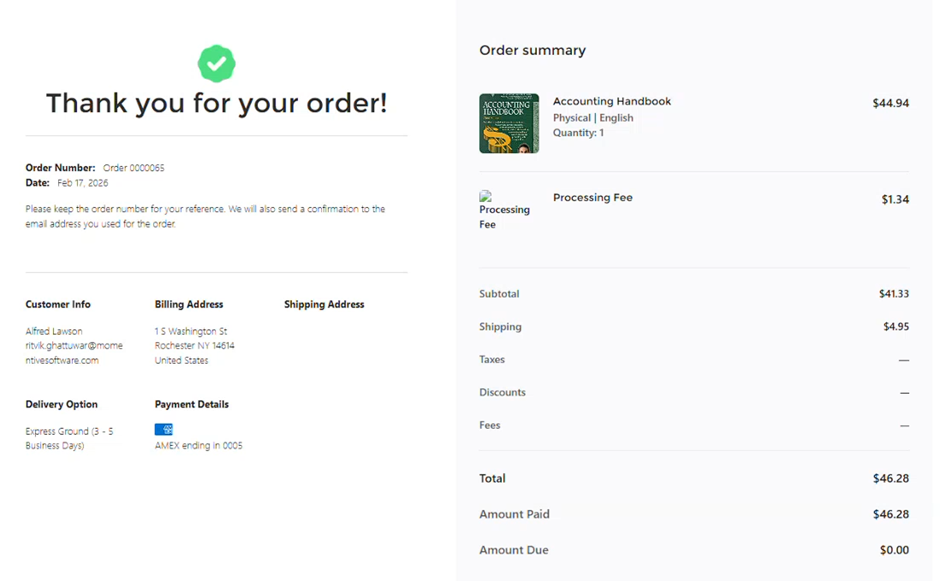
Order Summary: The user sees the final amount including the processing fee.
-
Order Records: A new Order Item and Order Item Line are created for the "Processing Fee" product.
Configuring Processing Fee Message
Configure the Processing Fee Message that is shown to users when the Checkout or Donation page loads with processing fee. Configuring the display message for Processing Fee is done using Custom Labels.
-
Navigate to Setup > Custom Labels
-
Locate and click ProcessingFeeAddedMessage
-
Create a new Translation, select English
-
Enter the Label Text in the Translation Text area
-
Click Save
Handling Cancellations
Processing fees are currently handled manually during cancellations. If a member cancels an order, staff must decide whether to refund the processing fee product or keep it as a non-refundable charge.