The new event registration experience is designed to be clearer and easier to navigate, especially for multi‑day events.
Registration now happens across two main pages, followed by checkout.
Step 1: Attendee Information and Ticket Selection
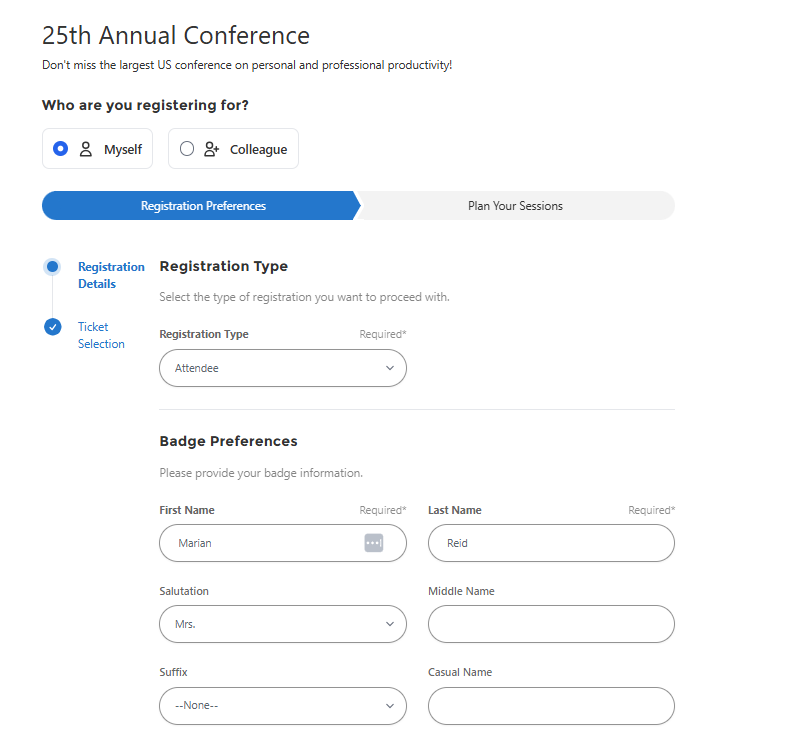
Choose Attendee / Registration Type
Members begin by selecting their attendee or registration type (if applicable).
This determines:
-
Available tickets
-
Available sessions
-
Required questions or fees
Enter Badge Information
Members enter their badge details up front on the same page.
✅ This removes the need for a separate badge step later.
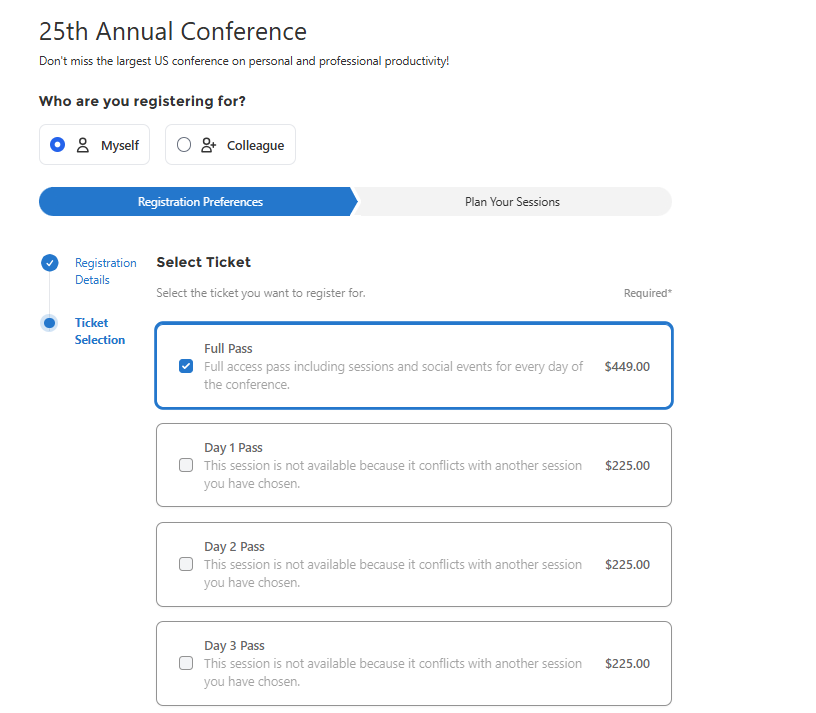
Select a Main Registration Ticket (If Required)
If the event includes ticket options:
-
Members select how they will attend (e.g., Full Conference, One‑Day Pass)
If no tickets exist:
-
This step is skipped automatically
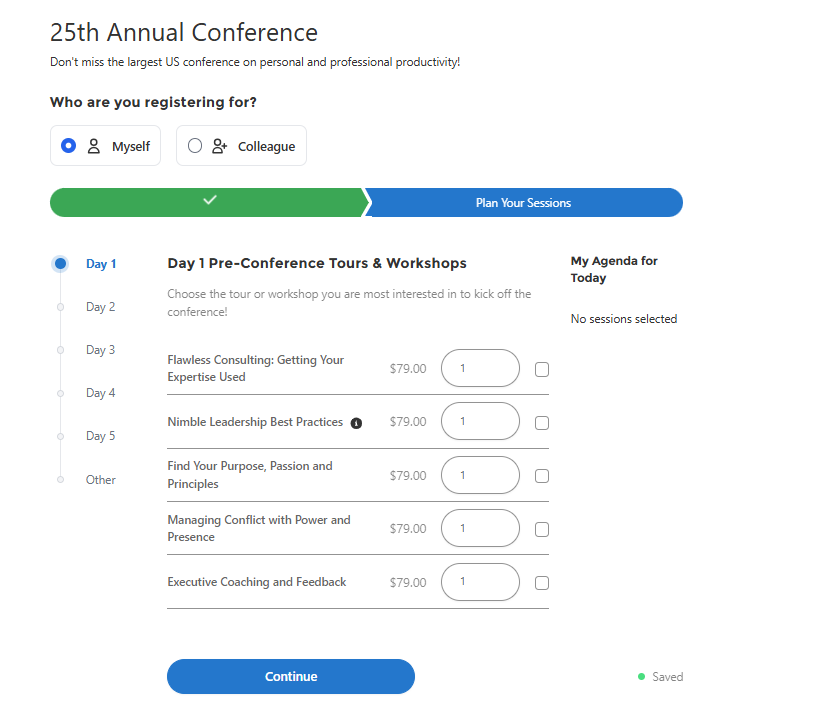
Step 2: Select Sessions Using Session Group Sets
Browse by Day or Category
Members see clearly labeled sections such as:
-
Monday
-
Tuesday
-
Morning / Afternoon
Each section represents a session group set.
Select Sessions by Time Slot
Within each section:
-
Sessions are grouped by time
-
Members choose one option per time slot
-
Only valid sessions are shown
Members can move between days until all selections are complete.
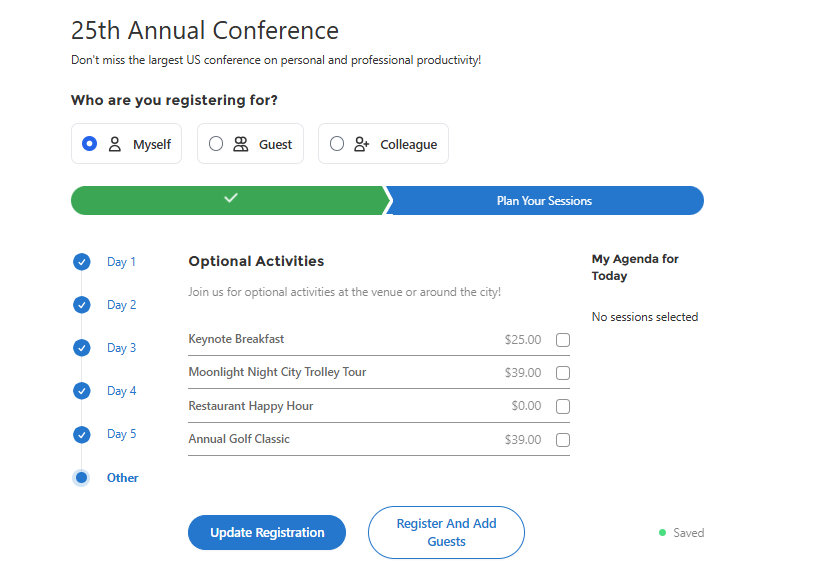
Final Step: Optional Items and Questions
If configured, members may:
-
Select optional products
-
Answer additional questions
Checkout and Confirmation
After completing registration:
-
Members proceed to checkout
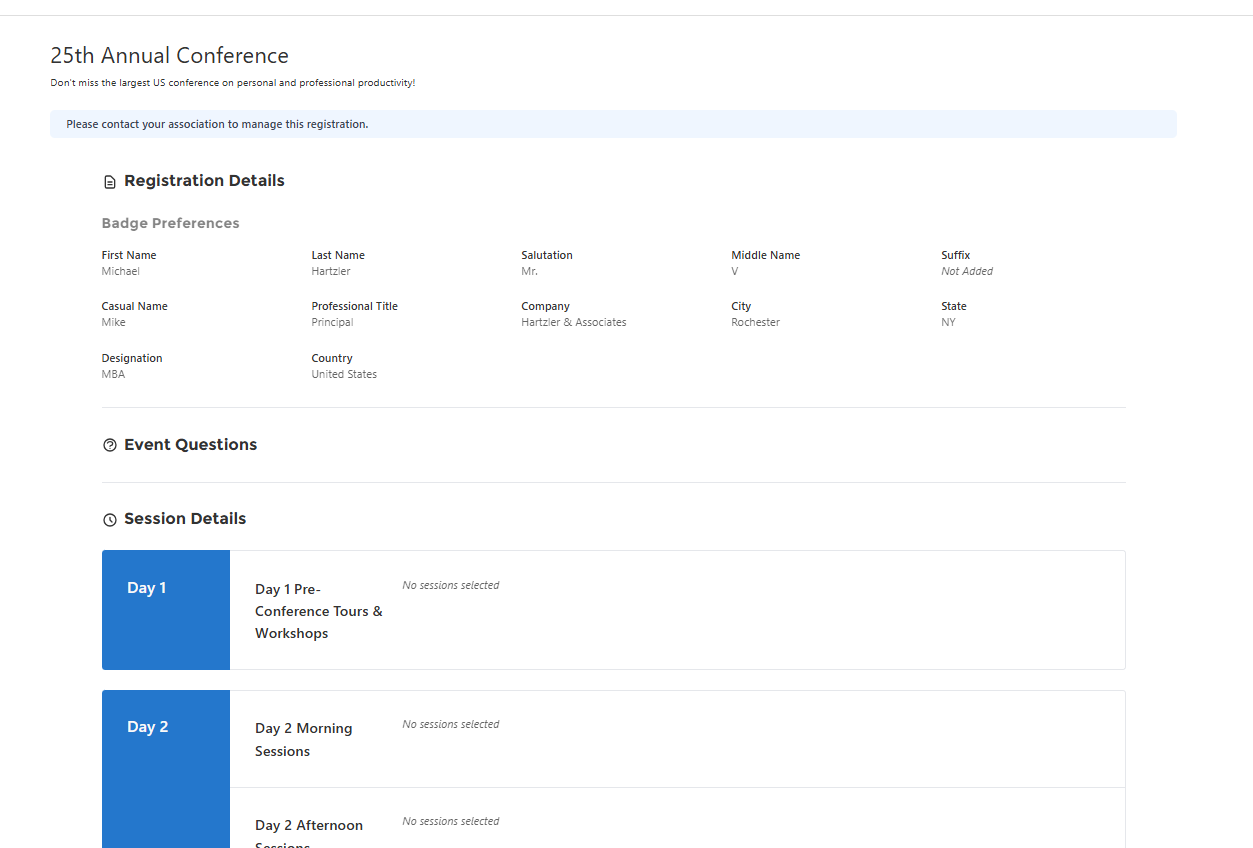
Members can view a confirmation of their registration later from My Upcoming Registrations
-
The confirmation displays a summary of:
-
Attendee type
-
Badge info
-
Ticket selected
-
Sessions chosen
-
Optional items
-
Questions and Answers
-